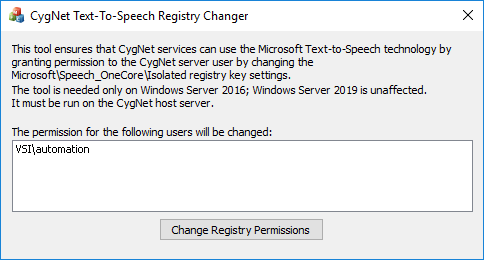
The CygNet Text-to-Speech Registry Changer utility is used to grant permission to the CygNet server user to use the Microsoft Text-to-Speech technology on Windows Server 2016 only. It is not required on Windows Server 2019.
The tool ensures that CygNet services can use the Text-to-Speech technology by granting permission to the CygNet server user by changing the Microsoft\Speech_OneCore\Isolated registry key settings.
The utility must be run on the CygNet host server.
The CygNet Text-to-Speech Registry Changer utility is stored in the CygNet\Bin directory (GNSTextToSpeechFixRegistry.exe) on the host server. To start the utility, use Windows Explorer to browse to the directory and double-click the program icon.
Note: You can also set up this utility to be installed and launched (started) via CygNet Client Installer so that the application can be version managed. See Version Management for instructions on how to do this.
To Change Permissions in the Microsoft\Speech_OneCore\Isolated Key
|
|
|

